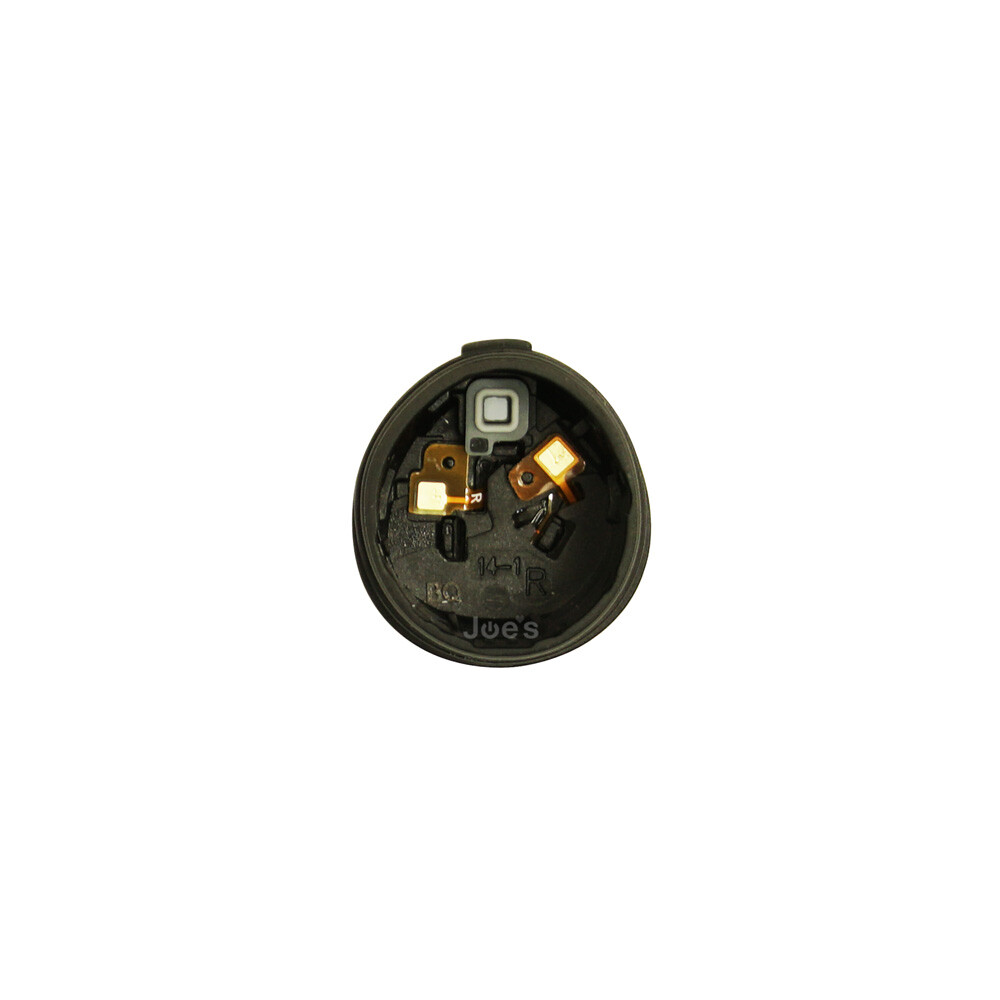
Replacement Black Left Headphone For 2018 Samsung IconX Icon X SM-R140
USD $30.95
Condition : Used
Free Shipping
{{variant_type_name}} :

Notify me when the price drops
We will email you if we find a lower price on this product!
Replacement Black Left Headphone For Samsung 2018 IconX SM-R140
Tested working 100% and in nice condition.
For left headphone without ear wing/tip installed. No other accessories included.
Includes quality memory foam ear tips, see second picture. $16 value.
If you lost your old headphone and need a replacement ear wing see my other listing with ear wings includedCLICK HERE or use link https://www.ebay.com/itm/283538999460
Instructions to pair replacement headphone with your current headphone.
Tested working 100% and in nice condition.
For left headphone without ear wing/tip installed. No other accessories included.
Includes quality memory foam ear tips, see second picture. $16 value.
If you lost your old headphone and need a replacement ear wing see my other listing with ear wings includedCLICK HERE or use link https://www.ebay.com/itm/283538999460
Instructions to pair replacement headphone with your current headphone.
- Put the headphones in your charge case and connect thru usb to a pc or mac.
- Open windows file explorer and open one of the earbuds memory storage. Under tools run the gear_iconx installer.
- You can do this now with your current headphone(s) before purchasing.
- --If you do not see both left and right headphones in windows file explorer-- The contacts on the headphones will not be clean and not allowing windows to read the memory in the headphones. Use a toothpick or similar to scrape all five contacts on each headphone. Also clean the pins in the charge case.
- It may ask you to update to the newest software after installing. Install the new version if so.
- When in the program it should automatically recouple/sync the headphones. If not go to the "more" button at the top right of the application and click "sync earbuds".
- If another menu comes up after recoupling the headphone saying to sync data between the headphone do that as well, the sound will be unbalanced between each headphone otherwise.
- After syncing delete your old bluetooth connection and then turn off and on the bluetooth.
- Go in the gear app and connect to the headphones. Be sure to update the firmware so both left and right headphones have matching firmware. If the headphones have mismatched firmware there may be no sound in one ear, unbalanced sound... or other issue's until the firmware is updated and matched between both headphones.
- To update firmware: In the app select the "SETTINGS" tab. Press "About Gear" and then "Update Gear Software". Press "Download updates manually", if it says "You're already using the latest sofware" then the firmware is up to date. If it does not then press "DOWNLOAD" in the next screen, then "INSTALL NOW".
- After updating if the headphones will not connect delete the old bluetooth connection from your device, turn off and on bluetooth and reconnect the headphones.

Price type
IN STOCK
OUT STOCK







 .
.
